Document Layout
Documents display on the BST11 content pane. While each document may have a different view or purpose, the general functionality and use of the screen is similar.
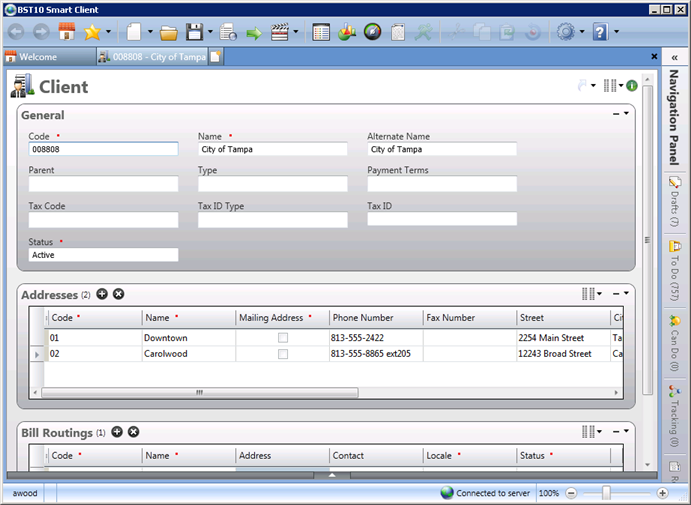
When you open or create a document instance, it is loaded on a tab in the content pane. At the top of the document, the document type and related icon are displayed. This icon is repeated throughout the system so that there is a visual indicator of the type of document that you are working on. If the document has tabbed pages, links to the available tabs display under the document name.
Most documents have a similar layout with a simple collection of areas. An area can contain a collection of fields or a list of information that allow you to input and review data. Each area is contained in a box, which includes a caption, buttons, and default views; for more information, see Default Views . However, there are more complex documents, such as Project, which require custom user interfaces to correctly display and input data. For instructions on how to use these types of documents, see the Help topic for the document .
In addition to entering data, documents are dependent on workflows, which are controlled by the system toolbar functions. The available toolbar options are limited based on the type and current state of the instance opened on the selected tab and your current permissions. For more information, see Toolbar.